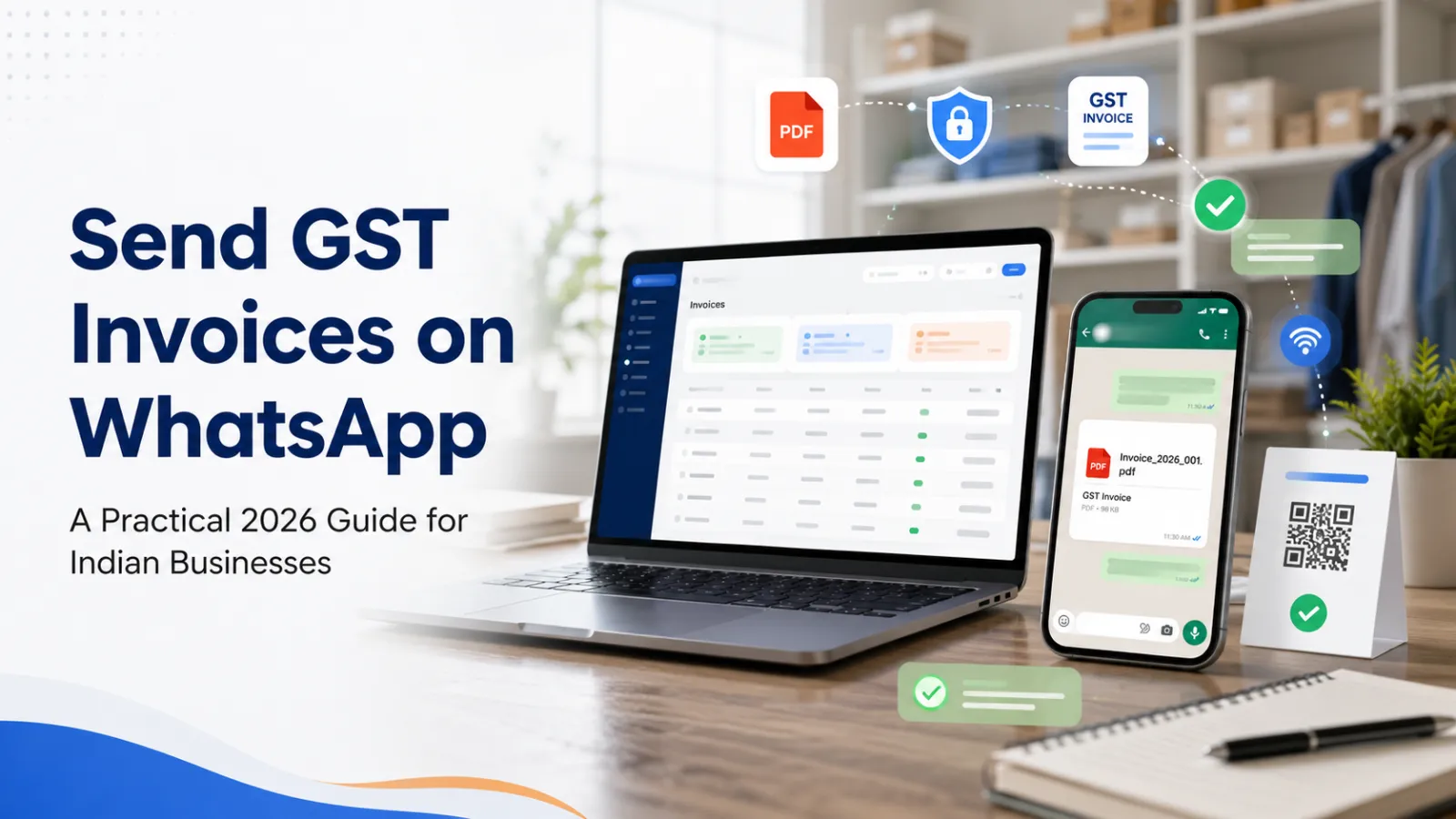
WhatsApp has become one of the fastest ways for Indian businesses to communicate with customers. Orders are confirmed on chat, delivery details are shared in seconds and payment follow-ups happen without a long email chain. It is natural that businesses also want to send GST invoices on WhatsApp.
Sharing an invoice on WhatsApp is convenient, but convenience should not replace accuracy. The invoice itself must still contain the required business, customer, transaction and tax details. Sending a photo of a handwritten total or typing an amount into a chat is not the same as issuing a properly prepared invoice.
This guide explains how freelancers, shopkeepers, consultants, agencies, startups and MSMEs can create a professional GST invoice, share it with a customer on WhatsApp, add an easy payment option and maintain an organised record.
Can a GST invoice be sent through WhatsApp?
Yes. A GST invoice can be shared digitally as a PDF or secure link through WhatsApp. The communication channel does not decide whether the invoice is compliant; the contents and issuance of the invoice do.
The Central Board of Indirect Taxes and Customs explains that GST does not prescribe one compulsory visual invoice format. Instead, CGST Rule 46 prescribes the particulars that a tax invoice must contain. A business can therefore use its own professional design, provided all applicable mandatory particulars are present.
For most small businesses, a PDF is the practical format because it:
Looks consistent on mobile and desktop
Is harder to change accidentally than a spreadsheet
Can be downloaded, printed or forwarded
Keeps the complete invoice on one document
Provides a professional record for both parties
What must the GST invoice contain?
Before sharing the invoice, check that it contains the fields applicable to the transaction. These commonly include:
Supplier’s legal name, address and GSTIN
Unique invoice number and date
Customer’s name, address and GSTIN, where applicable
Place of supply for an inter-state transaction
Description of goods or services
HSN code for goods or SAC code for services, as applicable
Quantity, unit, rate and taxable value
Discount, if any
Applicable GST rate and tax amount
CGST and SGST or IGST split, as applicable
Total invoice amount
Reverse-charge indication, where applicable
Signature or authorised authentication, where required
Use the Apna Invoice GST invoice format guide for a clear explanation of the mandatory fields and a sample layout.
Tax treatment can vary according to the nature of the supply, registration status, place of supply and other facts. When uncertain, confirm the correct treatment with a qualified tax professional.
How to create and send a GST invoice on WhatsApp
Step 1: Set up your business information
Add your business name, address, state, GSTIN, contact details, logo and bank or UPI information. Completing this once saves time because the details can be reused on future invoices.
Make sure the legal name and GSTIN match the registered information. A professional trading name can also appear where appropriate, but it should not make the supplier’s legal identity unclear.
Step 2: Add the customer
Enter the customer’s correct name, billing address, state and GSTIN if the customer is registered. The customer’s state and the applicable place of supply help determine whether the invoice uses CGST plus SGST or IGST.
Avoid relying only on a WhatsApp display name. Save the customer under the name that should appear on the invoice.
Step 3: Add the goods or services
For every invoice line, enter:
Description of the product or service
HSN or SAC code, where applicable
Quantity and unit
Rate
Discount, if any
Correct GST rate
Descriptions should be clear enough for the customer, accountant and internal team to understand what was supplied. Avoid vague entries such as “work done” when a more specific description is available.
Step 4: Verify the GST calculation
Check the taxable value and applicable tax treatment before issuing the invoice. For a typical intra-state taxable supply, tax may be divided into CGST and SGST. For a typical inter-state taxable supply, IGST may apply, subject to the relevant place-of-supply rules.
If you want to verify a calculation first, use the free GST calculator. Always confirm the correct GST rate for the relevant HSN or SAC code rather than selecting a rate based only on memory.
Step 5: Review and issue the invoice
Check the customer, invoice date, financial-year numbering, item details, GST split, payment terms and total. Once issued, the invoice should receive its final number and be preserved as the business record.
Do not keep creating new “final” spreadsheet copies. If a genuine correction is required after issuance, follow the appropriate invoice-correction or credit-note process instead of silently replacing the record.
Step 6: Download the PDF or create a secure link
Generate a clean invoice PDF. A secure web link can also make mobile viewing easier, but the customer should still be able to access or download the complete invoice.
Use a descriptive filename such as:
Invoice-AI-2026-27-0042-ABC-Traders.pdf
This is more useful than a filename such as invoice_final2.pdf, especially when the customer downloads multiple invoices.
Step 7: Share it on WhatsApp
Send the PDF or secure invoice link with a short professional message. Mention the invoice number, amount and due date so the customer understands the request without opening the document first.
With Apna Invoice, the invoice can be shared through WhatsApp with a prepared message, while the complete PDF remains available for the customer.
WhatsApp message templates for sending invoices
Standard invoice message
Hello [Customer Name],
Please find attached Invoice [Invoice Number] for ₹[Amount], dated [Invoice Date]. The payment is due on [Due Date]. Kindly review the invoice and let us know if you require any clarification.
Thank you, [Business Name]
Short invoice message
Hello [Customer Name], please find attached Invoice [Invoice Number] for ₹[Amount]. Payment is due on [Due Date]. Thank you.
Invoice with UPI payment option
Hello [Customer Name],
Please find attached Invoice [Invoice Number] for ₹[Amount], due on [Due Date]. You may use the UPI QR/payment details provided on the invoice. Kindly share the transaction reference after payment.
Regards, [Business Name]
Advance-payment invoice message
Hello [Customer Name],
Please find attached the invoice for the agreed advance payment of ₹[Amount] against [Project/Order Reference]. Kindly process the payment by [Due Date] so we can proceed with the next stage.
Thank you, [Business Name]
Professional payment-reminder messages for WhatsApp
An invoice sent quickly can still remain unpaid if the customer forgets it. A clear follow-up process improves collections without making the conversation uncomfortable.
Friendly reminder before the due date
Hello [Customer Name], this is a friendly reminder that Invoice [Invoice Number] for ₹[Amount] is due on [Due Date]. Please let us know if you need any information from our side to process the payment.
Reminder on the due date
Hello [Customer Name], Invoice [Invoice Number] for ₹[Amount] is due today. Kindly confirm once the payment has been processed. Please disregard this message if already paid.
Polite overdue reminder
Hello [Customer Name], our records show that Invoice [Invoice Number] for ₹[Amount], due on [Due Date], is still outstanding. Please share an update on the expected payment date. We have attached the invoice again for convenience.
Payment received message
Hello [Customer Name], we have received ₹[Amount] against Invoice [Invoice Number]. Thank you for the payment. Please find the payment receipt attached for your records.
How a UPI QR code can speed up payment
A UPI QR printed on the invoice reduces the steps between viewing the invoice and making the payment. Instead of manually typing an account number or UPI ID, the customer can scan the QR using a compatible payment application and verify the payment details.
Keep these points in mind:
Use only the business-approved UPI ID or bank account.
Test the QR before sending the first invoice.
Ask the customer to verify the payee name before confirming payment.
Reconcile the payment using the amount and transaction reference.
Record partial payments separately instead of marking the full invoice as paid.
An ordinary UPI payment QR is not the same as the QR generated under the government e-invoicing system. Businesses covered by e-invoicing requirements should follow the applicable Invoice Registration Portal process and consult their tax adviser.
Common mistakes when sending invoices on WhatsApp
Sending only a screenshot
A screenshot may cut off important fields and becomes difficult to print or archive. Share the complete PDF or secure invoice link.
Using an editable spreadsheet as the final invoice
Spreadsheet files can appear differently across devices and can be changed accidentally. Use a locked, well-formatted PDF for customer sharing.
Forgetting the invoice number in the message
The customer may receive several documents in one conversation. Mentioning the invoice number makes accounts-payable follow-up easier.
Sharing from an unrecognised personal number
Where practical, use a consistent business contact and include the business name in the message. Customers are more likely to trust a document when they can identify the sender.
Exposing another customer’s information
Double-check the recipient and attachment before sending. Never reuse an old message without confirming that the customer name, invoice number and document are correct.
Treating the WhatsApp chat as the only record
Chats can be deleted, devices can be changed and media can become difficult to retrieve. Maintain the invoice and payment status in a proper billing system.
Sending repeated reminders without checking payment
Before following up, check whether the customer has already paid. An unnecessary overdue reminder after payment damages the customer experience.
Best practices for WhatsApp invoicing
Issue the invoice promptly after completing the supply or agreed milestone.
Use a consistent invoice-numbering series.
Send a PDF or secure link, not only a photograph.
Mention invoice number, amount and due date in the message.
Add clear bank or UPI payment details.
Keep reminders polite, factual and spaced appropriately.
Record full, partial and TDS-adjusted payments accurately.
Send a receipt after receiving payment.
Back up invoice and customer records regularly.
Restrict billing-system access to authorised team members.
How Apna Invoice simplifies WhatsApp billing
Apna Invoice is built for Indian freelancers, shops, startups, MSMEs and service businesses. It helps businesses create professional invoices online and share them with customers without managing scattered spreadsheet versions.
Useful capabilities include:
Automatic CGST, SGST and IGST handling based on the transaction details
HSN and SAC support
Professional PDF invoices
One-click WhatsApp sharing
Email and secure-link sharing
UPI QR on invoice PDFs when configured
Payment and outstanding tracking
Full and partial-payment recording
Payment receipt generation
Quotations, credit notes and GST reports
Financial-year invoice numbering
Apna Invoice is currently available free during beta, subject to the terms displayed on the website. Businesses can create a free account and prepare their first professional invoice online.
Is an invoice sent on WhatsApp valid?
Sharing through WhatsApp does not itself make an invoice valid or invalid. The invoice should be properly issued and contain the particulars required for the transaction. A PDF copy can be shared digitally for the customer’s records.
Should I send an invoice as a PDF or image?
PDF is usually better because it preserves the complete layout, can be printed and is less likely to crop important information. A secure invoice link can also be convenient for mobile users.
Can I add a UPI QR code to my invoice?
Yes, a business can include its approved UPI QR as a convenient payment option. The customer should verify the payee details before paying. Do not confuse a payment QR with the QR generated under applicable GST e-invoicing requirements.
Can I send a non-GST invoice through WhatsApp?
Yes. An unregistered business can share its permitted non-GST invoice or bill digitally, but it should not charge GST or present itself as GST registered. The document should accurately identify the business and transaction.
What should I write when sending an invoice on WhatsApp?
Include a greeting, invoice number, amount, invoice date or due date, a request to review or pay, and the business name. Keep the message short and professional.
How can I follow up without sounding rude?
Refer to the invoice number, amount and agreed due date, ask for an expected payment update and attach the invoice again. Avoid emotional or accusatory language.
Create, share and track your next invoice
WhatsApp can make invoice delivery faster, but the best results come from combining quick communication with structured billing. Create the invoice accurately, share a professional PDF, provide a simple payment option and maintain a clear record of what is paid and outstanding.
Start creating GST-ready invoices with Apna Invoice and share your next invoice with the customer in seconds.
Disclaimer: This article provides general information and does not constitute tax or legal advice. GST requirements can change and may differ according to the transaction. Consult a qualified professional for advice specific to your business.